
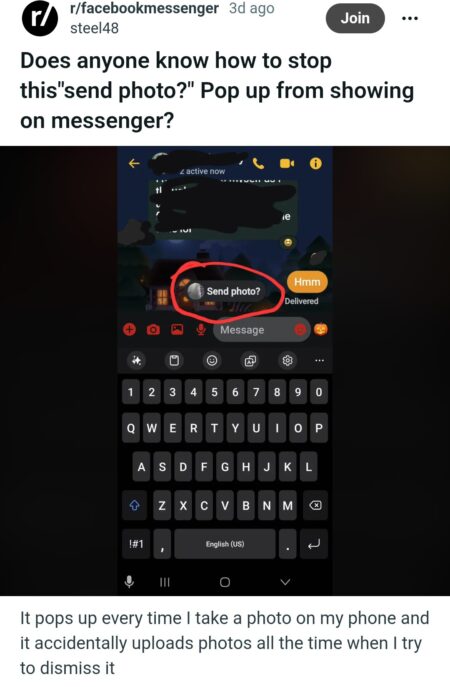
New reports indicate that many Facebook Messenger users are getting an annoying “Send photo?” pop-up. The prompt shows up very close to the chat input box. Tapping on it accidentally uploads images, especially the sensitive ones. If you currently experience this issue, this post will guide you on how to stop the “Send photo?” pop-up in Messenger.
Users seek help to stop the Messenger “Send photo?” pop-up
The “Send photo?” pop-up in Messenger is located near the chat input box. This prompt works by suggesting the latest screenshot or photos from the camera roll. While this is not an entirely bad feature, its positioning certainly is.
According to many users, the positioning of the prompt button makes it easier for users to tap accidentally. Every time this happens, the button accidentally sends sensitive images. When describing the situation on Reddit, Steel48 said: “It pops up every time I take a photo on my phone and it accidentally uploads photos all the time when I try to dismiss it.”
As noted by PiunikaWeb, this prompt is likely part of new camera roll suggestions offered by Meta for EU and UK users. However, for now, there’s no official documentation to support it. Furthermore, looking at the reports, it seems the issue mostly affects the Android app. Now, users are requesting effective workarounds to stop the Messenger “Send Photo?” pop-up.
Are there workarounds yet?
Yes, there are a few effective workarounds you can try to stop the annoying pop-up in your Messenger app. One solution, suggested on Reddit, involves adjusting settings in your Facebook app. You can do this by following the steps below:
- Open your main Facebook app.
- Navigate to Menu > Settings & Privacy > Settings.
- Under Settings, choose Preferences.
- Locate “Camera Roll Sharing Suggestions,” and toggle it off.
Although tested and confirmed, you need to understand that this workaround isn’t effective for everyone. If yours fails, consider restarting your app before trying.
Alternatively, you can try changing photo permissions in the Settings app. To do this, follow the steps below:
- Go to Settings & Privacy on your Facebook app.
- Navigate to Settings > Your Activity > Device Permissions.
- Under Permissions, select Photos and Videos.
- From there, choose “Don’t allow.”
This solution will certainly help you stop the Messenger “Send Photo?” pop-up. However, the effect of this workaround also includes disabling the sharing of all photos on Facebook. With this setup, you can rest assured that your sensitive images won’t be uploaded accidentally.

Add Comment