


On March 18, 2026, YouTube introduced a new feature for its users. Named Reimagine, this tool allows creators to extract a single scene from an existing Short. After that, users can use prompts to reimagine the scene into new content. From what this AI tool offers, it’s easy to say that it’s fun to use. Unfortunately, many creators think otherwise and are now seeking a way to disable the AI YouTube Shorts video generation feature.
Push Grows to Disable AI YouTube Shorts Video Tool
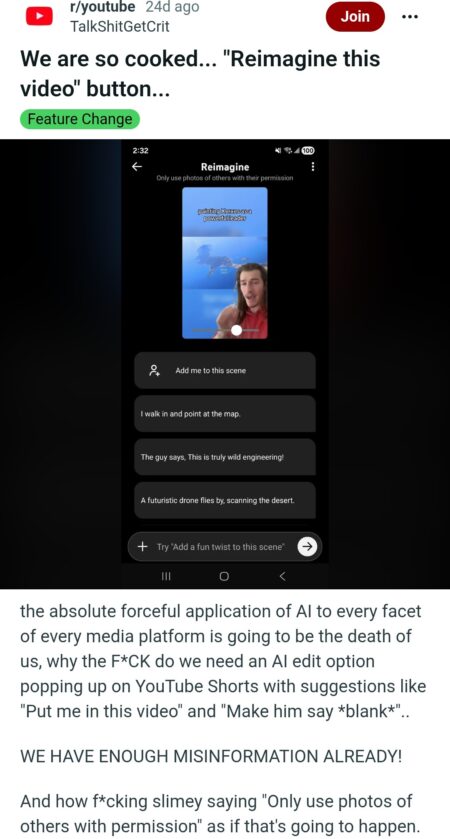
According to YouTube, Reimagine offers users a fun way to remix content. But this idea seems not to sit well with many creators and users. Many creators who aired their dissatisfaction with the new feature see Reimagine as an engineer for creating AI slop out of their hard work.
Looking at complaints across different platforms, including Reddit, it’s obvious that many creators don’t want this feature. Users are angry with YouTube for applying the feature to their content by default. As such, they’re asking the YouTube team to disable the AI Shorts video tool.
You can check this r/YouTube thread to see what many creators think about the new feature. Some users are already keeping their old content private and moving to other platforms, such as Bluesky and Patreon.
Understanding how to disable Reimagine
Let’s face it: Finding the opt-out button for Reimagine is pretty challenging. That’s so because it’s completely hidden, especially if you’re searching from your phone. As such, it’s almost impossible to disable the YouTube AI Shorts video tool directly from the mobile app.
If you use the desktop version, your chances of also switching off the tool are a bit high. But keep in mind that the tool has no global off switch. For you to disable it, locking down your existing catalog is essential. After that, you need to manually flag all your new uploads. To do this, below are a few steps we recommend:
- Protect your eligible Shorts by logging in to YouTube Studio via the desktop version.
- Next, go to your Shorts tab.
- From the tab, choose your videos and Edit.
- Next, navigate to the remixing option of the Shorts.
- Choose “allow only audio remixing.”
- Lastly, click Update videos and acknowledge the prompt that follows.
With these steps, you’ve successfully restricted your older videos from being used for AI remixing. Going forward, all you need to do is apply the settings to your new videos every time you’re publishing.